 hydra
hydraFrom install to Claude at work.
This walks you through hydraui once, in order: install it, make an environment for each identity you work as, sign each one in, point it at your code, save the window, and hand Claude a task. Each step takes a minute or two. Two words first: an environment is a named set of logins (Claude Code, GitHub, git and so on), and every terminal hydraui opens runs inside one, already signed in as that environment.
1. Install
Download and run the installer. It installs hydraui and the hydra command line for you alone, with no admin prompt, adds hydraui to the Start menu and puts hydra on your PATH.
Download the installer hydra + hydraui
Then start hydraui from the Start menu. You need Windows 11 and PowerShell 7 (pwsh); Git for Windows if you want bash terminals or git.
2. Your first environment
The first time, hydraui has no environments yet, so it asks you to name one. Pick the identity you'll use most, say work. hydraui creates it and opens a tab for it with one terminal.
- The tab at the top is the environment, in its own colour. The list on the left is its terminals; + New (or Ctrl+T) adds another.
- The terminal's prompt starts with
[work], so you can always see which identity you are typing as.
3. Sign in
A new environment has no logins. The status bar at the bottom shows its tools; click the environment's name there to open its Accounts:
- Choose Add account…, then Claude Code. Its sign-in runs in a new terminal: follow it in the browser that opens.
- Do the same for GitHub, and git if you commit from here (it asks for the name and email to commit as).
- Each tool shows a ✓ once its login is in place.
These logins belong to work alone: claude, gh and git in a work terminal use them, and nothing else does. Already signed in to a tool in another environment and happy to share it? Use from… on that tool borrows the login instead.
4. Point it at your code
Press Ctrl+Shift+P to open the launcher, choose Set environment home… and pick the folder you work in, for example your project or the folder that holds your projects.
- New
workterminals now open there. - The folder is bound to
work: a new window started in it picksworkby itself, and thehydracommand line knows the folder's identity too.
Press Ctrl+B for the file tree: it follows the shown terminal's folder and marks what git sees changed. Click a file to read or edit it in the file pane beside the terminal.
5. Add another environment
Work as more than one person, say work and personal? Click + at the end of the tab strip and choose New environment…. Name it, then repeat steps 3 and 4 for it: its own sign-ins, its own home folder.
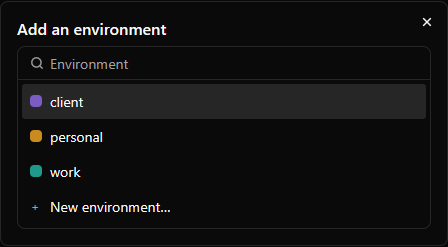
Each environment gets its own tab and colour, and Ctrl+Tab moves between them. To change a colour, open the launcher, choose Edit environment: name and set color = "#rrggbb".
6. Keep your window
A new window is untitled and isn't kept when you close it. To keep it, click untitled ▾ in the title bar and choose Save layout as…. From then on the window keeps its layout file up to date as you work.
- Next time, hydraui starts on a page of your recent layouts: pick one and its environments, terminals, folders and open files come back.
- Terminals that had Claude running start it again with
claude --continue, so you pick up where you left off.
7. Run Claude
Type claude in a terminal. It runs as that environment's Claude account, with your usual skills, plugins and settings shared from ~/.claude.
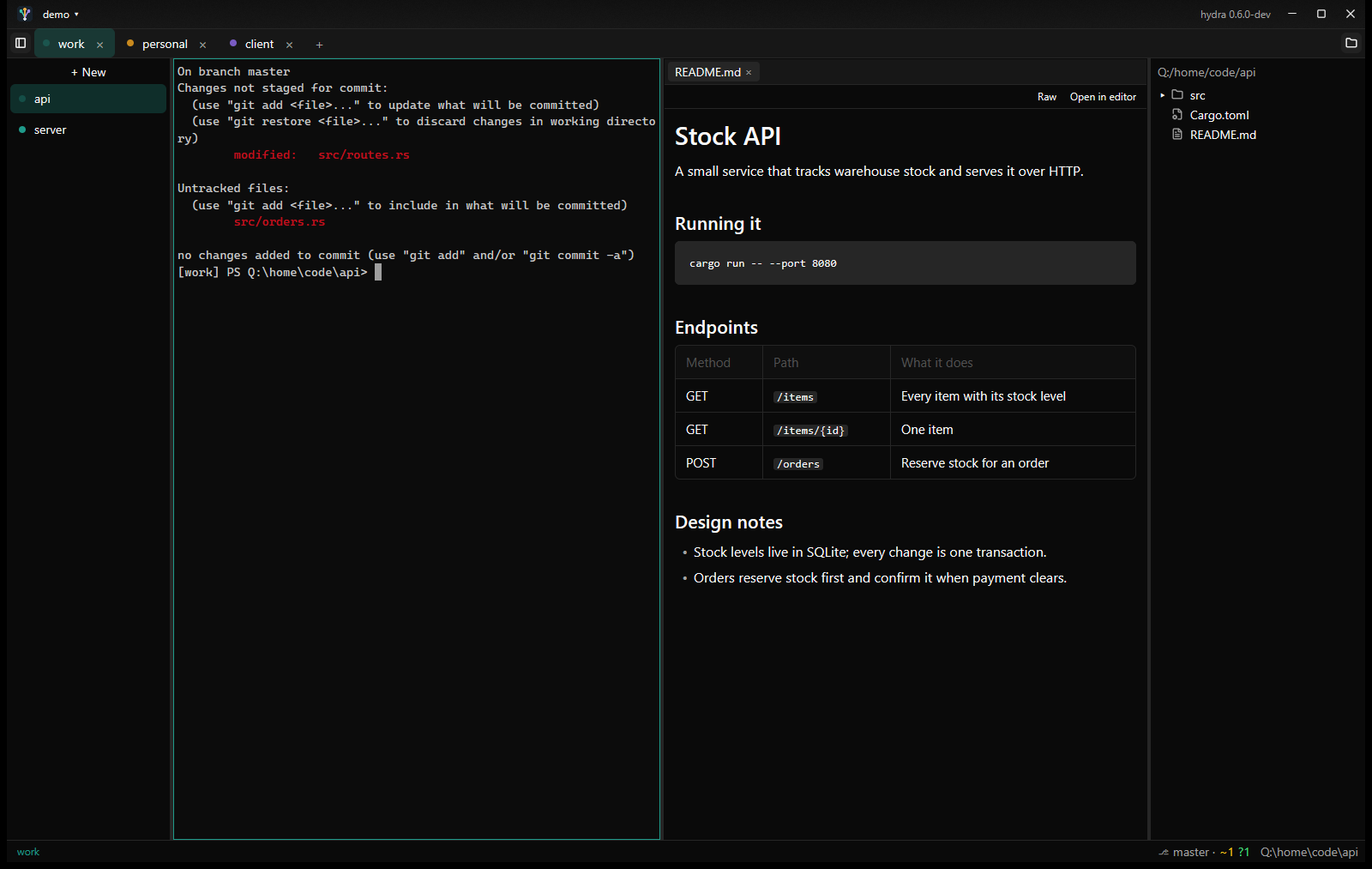
You don't have to watch it. Each terminal's row in the list says what its Claude is doing: working, needs you (a question or a permission) or idle (finished, your turn). When a session you can't see finishes or needs you, its environment tab gets an amber dot, a toast names the terminal (click it to go there), and the taskbar button flashes if hydraui is in the background. Run several sessions side by side, one per terminal, and come back to each when it's ready.
8. Hand it work
Ideas arrive while Claude is busy. The task board holds them until you're ready, and Claude can pick them up itself.
- Right-click the terminal in the list and choose Tasks. A Tasks tab opens beside it with five columns: Backlog, Pickup, InProgress, Verify and Done.
- Click + on Backlog and write the task in a sentence or two. Jot down as many as you like.
- When one is ready to be done, drag it to Pickup. Pickup is your go-ahead: Claude only takes cards from there.
- Tell Claude "take the next task". It moves the card to InProgress with its terminal's name on it, and does the work.
- Once the work is committed, Claude moves the card to Verify with the commit on it. Click the commit to see exactly what changed, as a diff in the file pane.
- Happy with it? Drag it to Done. Only you can do that.
.hydra/tasks.md in your project, so you can read or edit it anywhere.Keys worth knowing
| Key | What it does |
|---|---|
| Ctrl+Shift+P | The launcher: environments, sign-ins, layouts, settings, everything else |
| Ctrl+T / Ctrl+W | New terminal in this environment / close the terminal |
| Ctrl+PageDown / Ctrl+PageUp | Next / previous terminal |
| Ctrl+Tab | Next environment |
| Ctrl+B | Show or hide the file tree |
| Ctrl+Shift+O / Ctrl+Shift+F | Quick open / search in files |
| Ctrl+Shift+C / Ctrl+Shift+V | Copy / paste in a terminal |
Where next
- The App guide covers everything in hydraui: the file pane, layouts, accounts, the launcher, settings and every shortcut.
- The CLI guide covers
hydraon the command line: binding folders, guards that stop the wrong account committing or pushing, borrowed logins and secrets. - hydraui checks for updates every hour; when there is one, Update hydra appears in the title bar.